
AlgoKit Quick Start Guide
AlgoKit is a comprehensive, one-stop development tool that enables developers to quickly and efficiently build and launch secure, automated, production-ready decentralized applications on the Algorand protocol. Now featuring native Python support, empowering developers to write Algorand apps in one of the world's most popular programming languages.
What AlgoKit Provides
Smart Contract Templates
Pre-built templates to kickstart your development with best practices
Local Infrastructure
Complete application infrastructure running locally for development
Language Integration
Native support for Python and TypeScript with familiar toolchains
Simplified Frontend
Streamlined frontend design experience for dApp development
Prerequisites
Before getting started with AlgoKit, ensure you have the following components installed on your system:
Installation Instructions
Windows Installation
Note: This method installs the most recent Python 3 version via winget. If you already have Python 3.12+ installed, you may prefer to use the OS Agnostic tab.
1. Install Prerequisites
winget install git.gitwinget install docker.dockerdesktop2. Install Python
winget install python.python.3.12Restart the terminal after installation to ensure Python and pip are available.
3. Install pipx and AlgoKit
pip install --user pipxpython -m pipx ensurepathpipx install algokitVerify Installation
To confirm AlgoKit has been installed correctly, run the following command:
algokit --versionYou should see output similar to:
algokit, version 2.0.0Start a LocalNet
AlgoKit supports running a local version of the Algorand blockchain for development. To start a LocalNet instance:
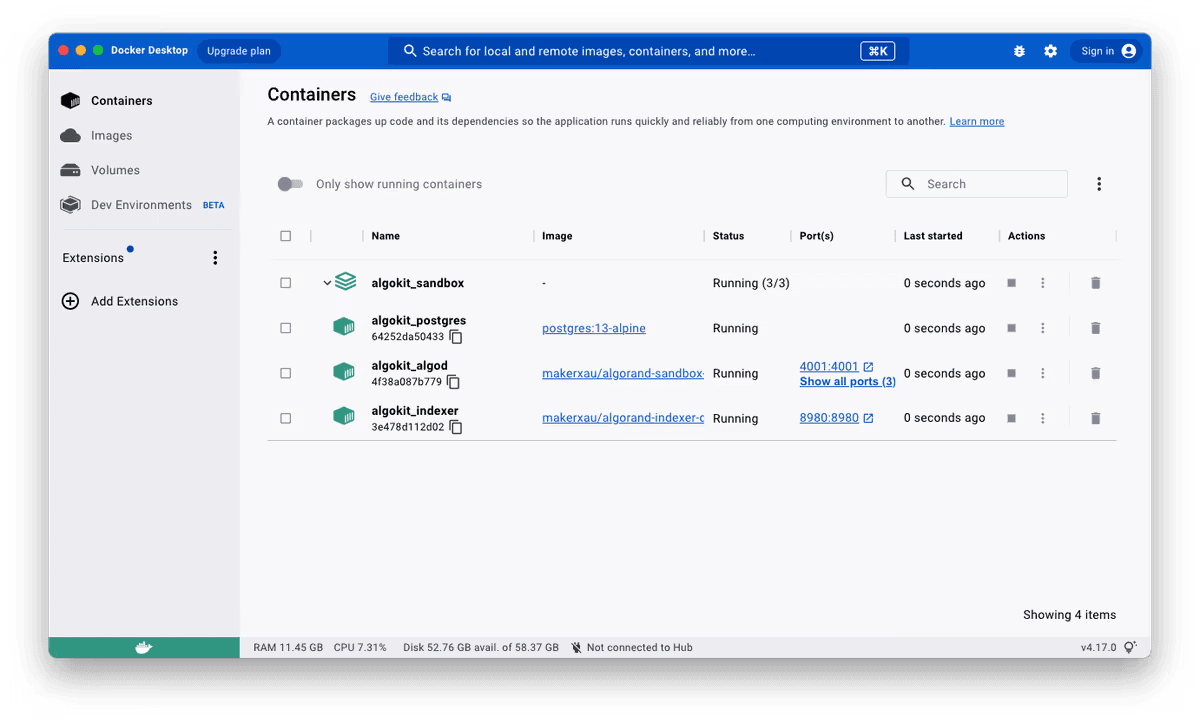
algokit localnet startThis command starts a LocalNet instance within Docker. You can verify it's running by opening Docker Desktop:
Create an AlgoKit Project
With AlgoKit installed, you can rapidly create a new project tailored to your needs:
algokit initThis launches a guided menu system to create a project from various templates. For this guide, select:
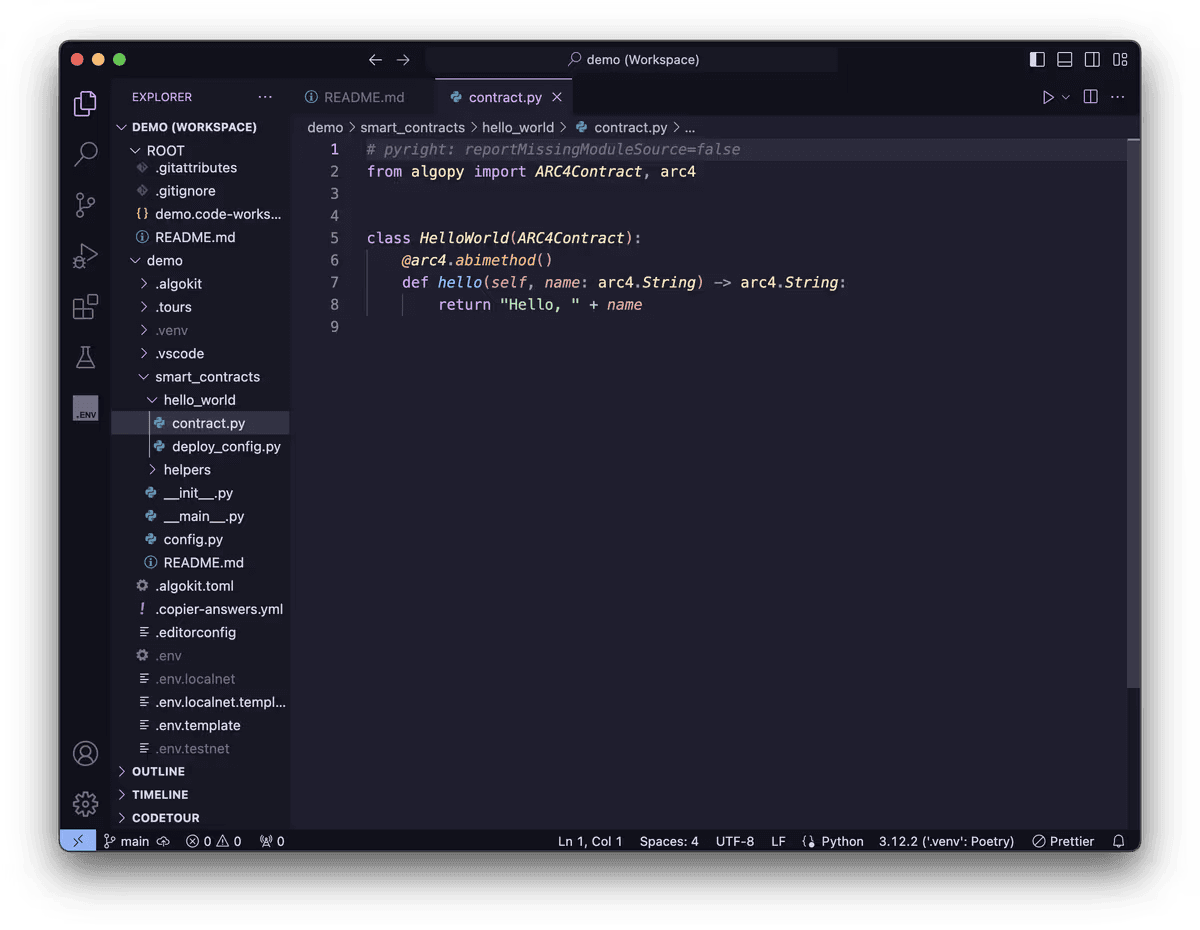
Once completed, VS Code will open with the initialized project. The starter app contains one smart contract built with Algorand Python:
Run the Demo Application
In the smart_contracts/hello_world folder, you'll find deploy_config.py, which demonstrates deploying and calling the smart contract:
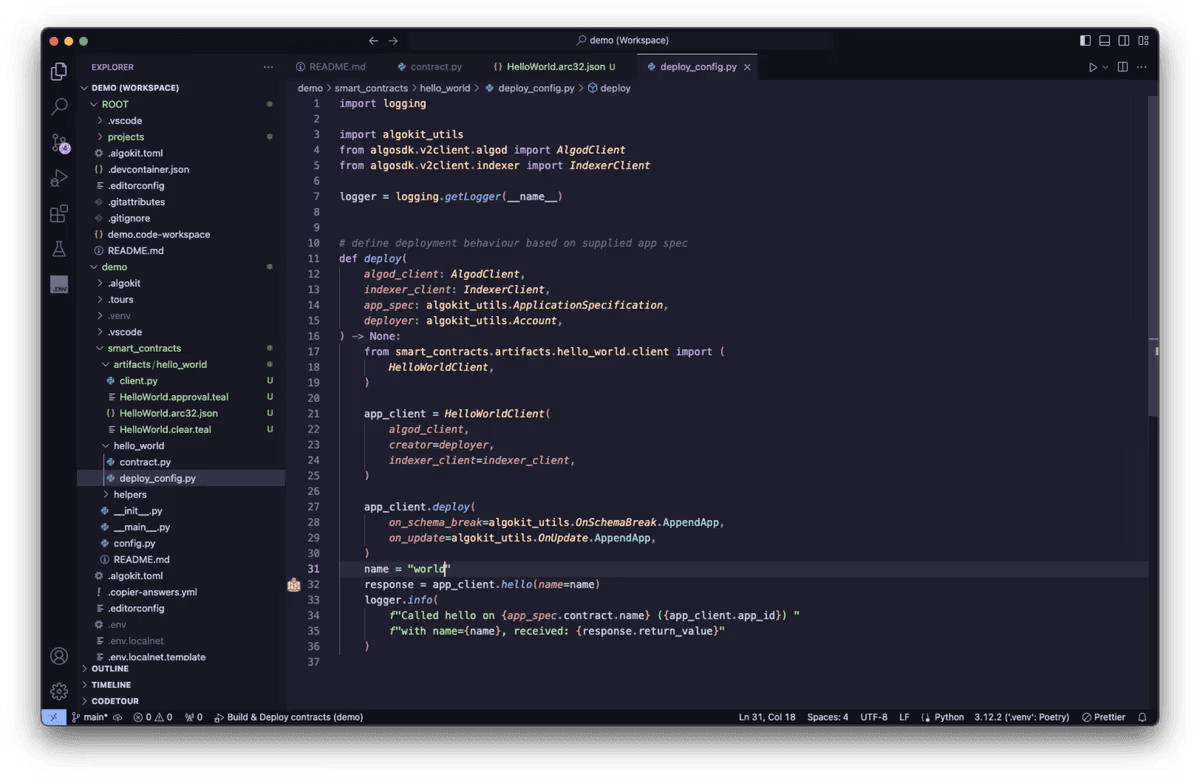
Press F5 to deploy the HelloWorld smart contract and call it. Alternatively, use these commands:
algokit project run buildalgokit project deployExpected output:
HelloWorld not found in account, deploying app.
HelloWorld (v1.0) deployed successfully, with app id 1002.
Called hello on HelloWorld (1002) with name=world, received: Hello, world
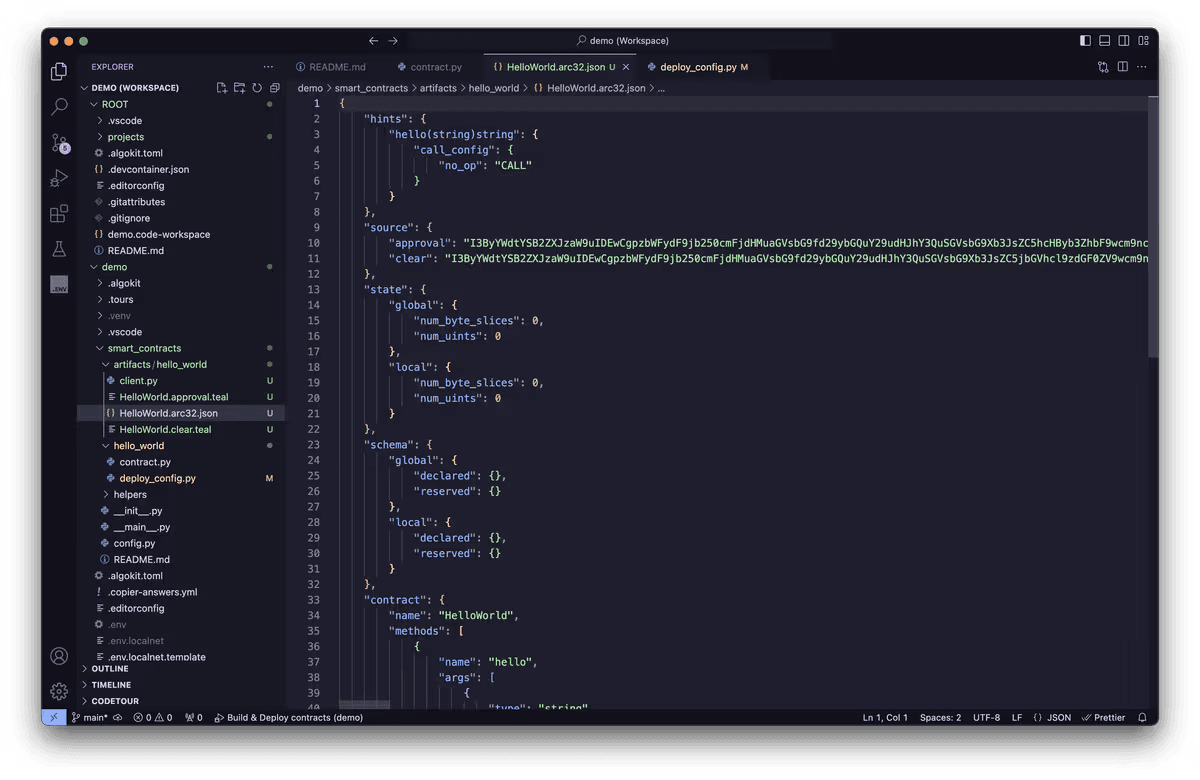
The artifacts folder will contain the compiled TEAL code and manifest files:
Using Lora
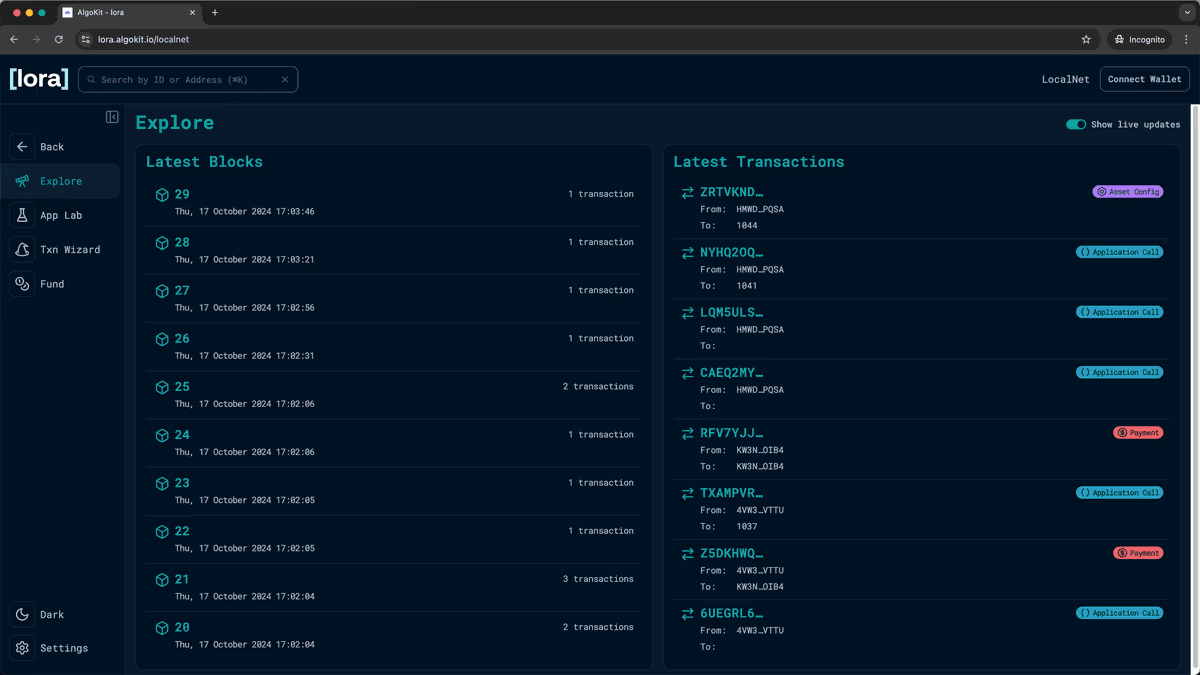
Lora is a web-based interface for visualizing accounts, transactions, assets, and applications on Algorand networks. Launch it with:
algokit exploreThis opens Lora in your default browser, connected to LocalNet:
Connect Local Account for Testing
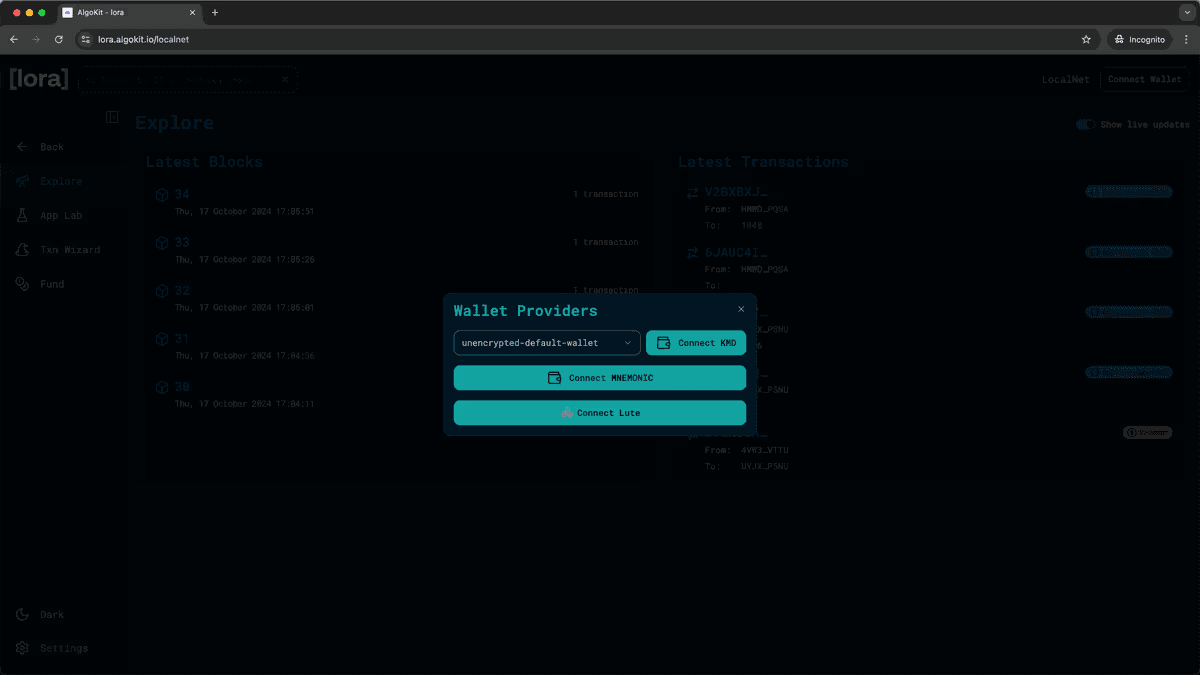
To interact with LocalNet, you need an account with ALGO. Click "Connect Wallet" and choose "Connect KMD":
Deploy via Lora
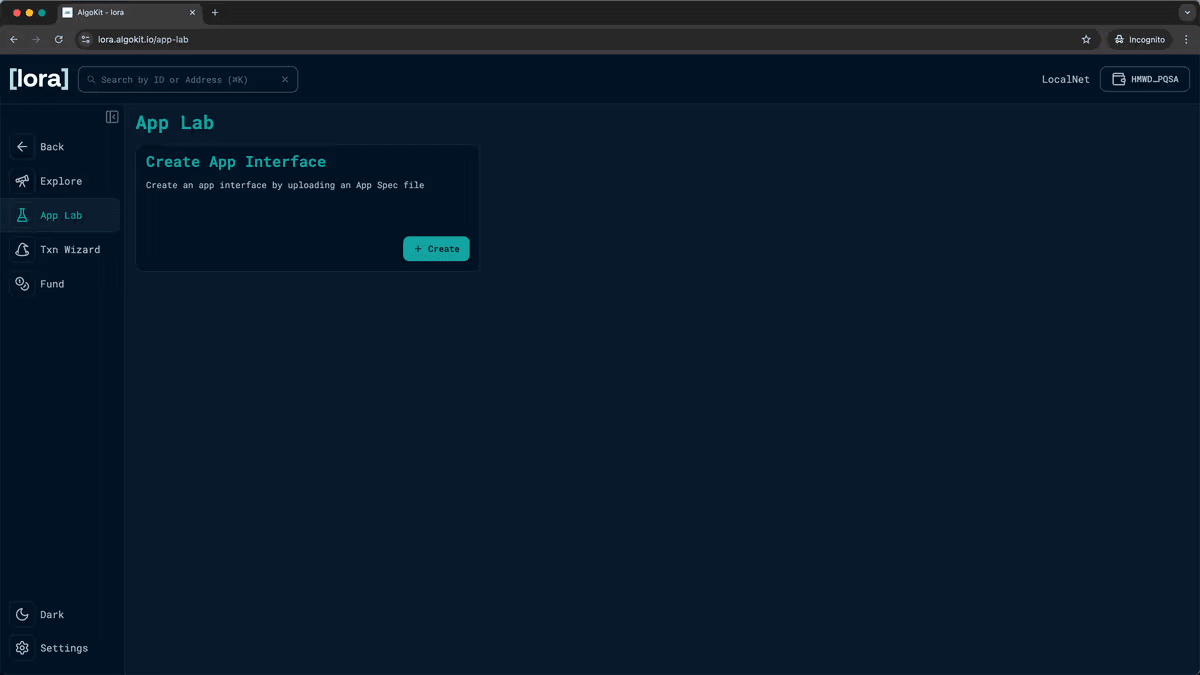
Navigate to App Lab and click "Create" to deploy your smart contract:
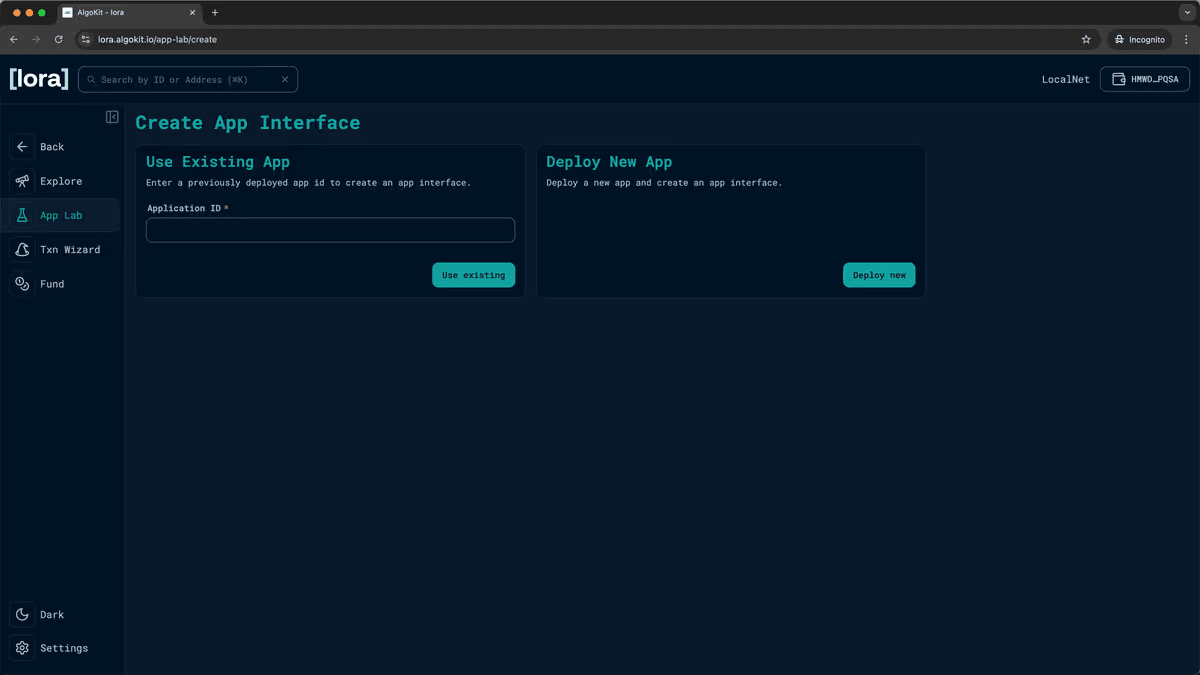
Choose "Deploy new" and select your HelloWorld.arc32.json manifest file:
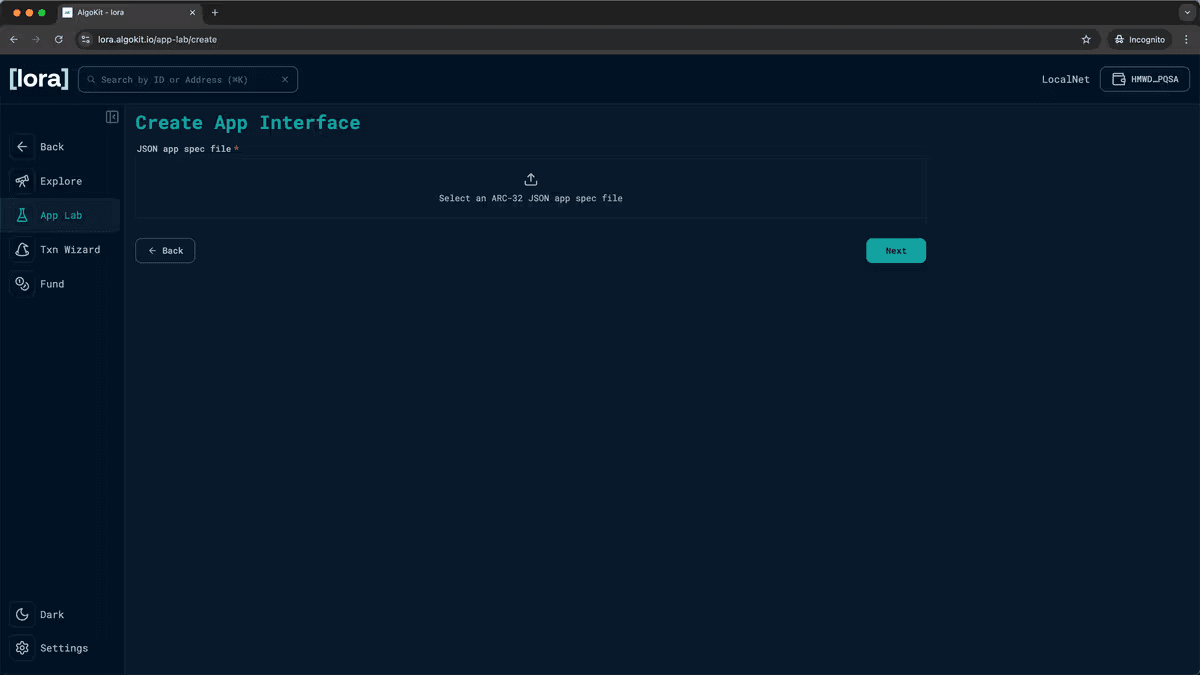
This will load the specific manifest file for the Hello World sample application. You can modify the Name and Version of your app if needed, but we'll keep the defaults. Click Next:
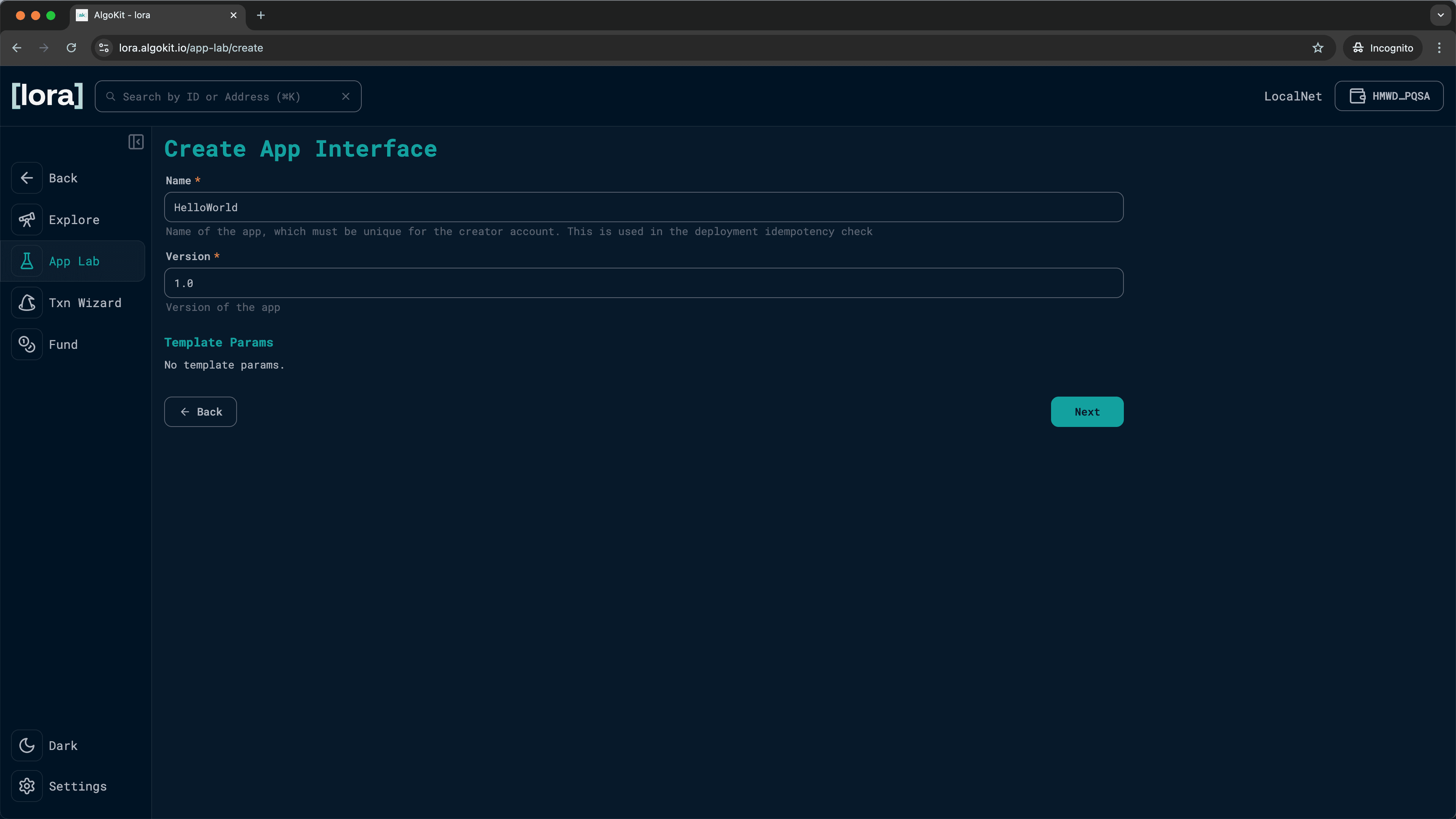
Build and Deploy Transaction
Click the "Call" button, then build and add the create transaction by clicking "Add":
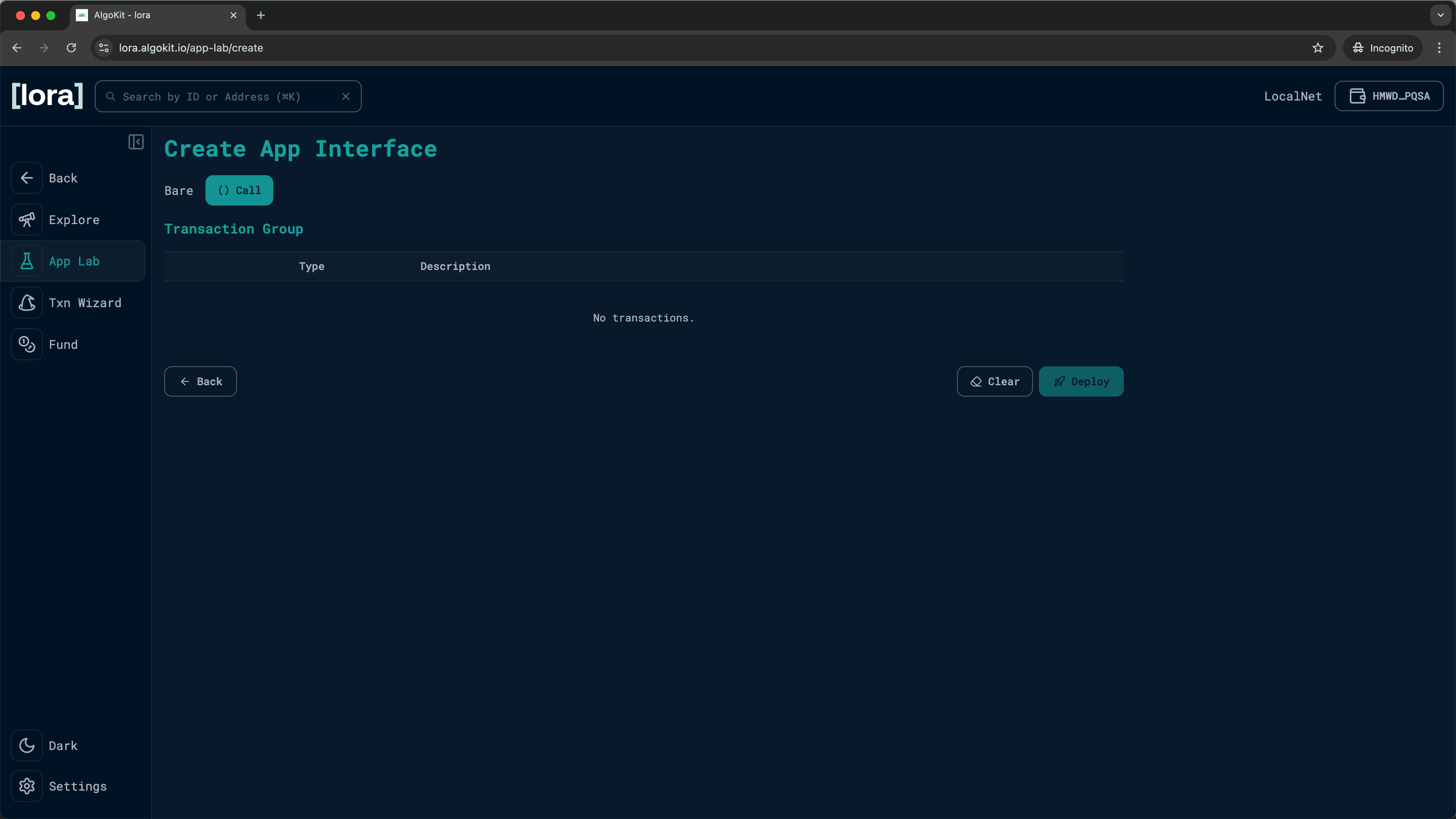
This opens the Build Transaction dialog where you can configure the deployment parameters:
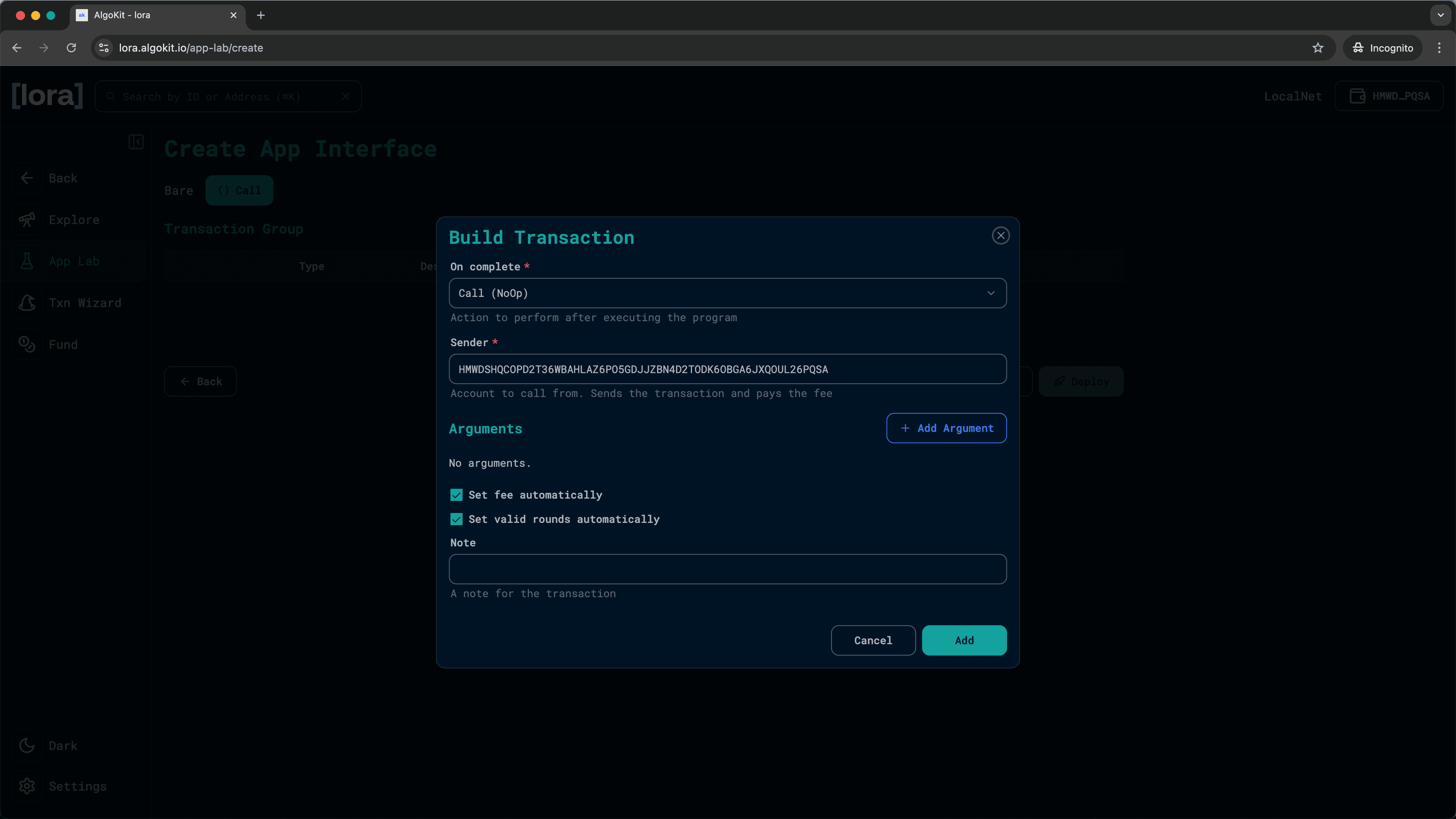
After configuring the transaction, you'll see it added to the transaction group. Click "Deploy" and sign the transaction by clicking "OK" in the KMD popup to deploy the smart contract to the local Algorand network:
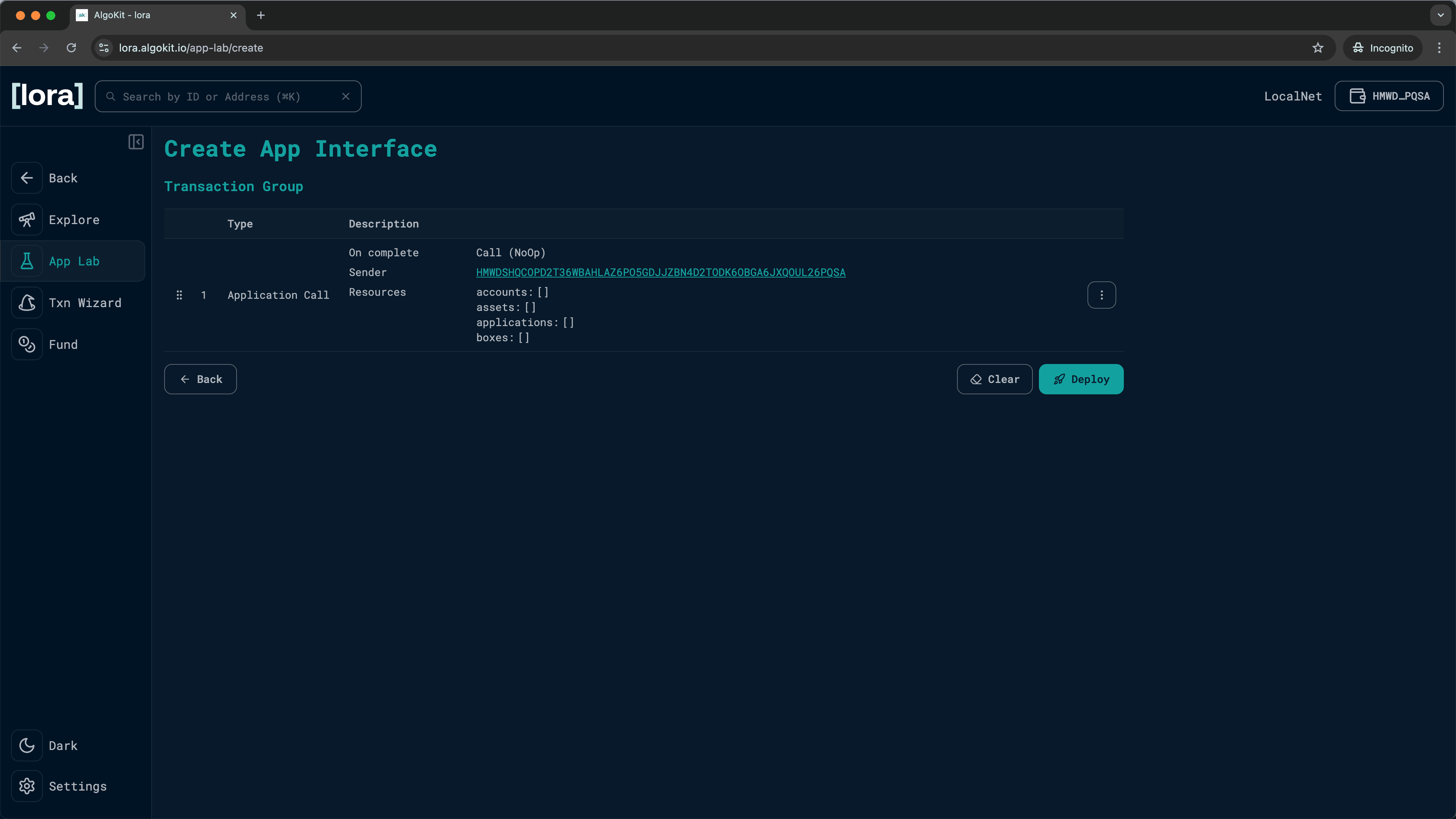
View Deployed Contract
You should now see the deployed HelloWorld contract on the App Lab page:
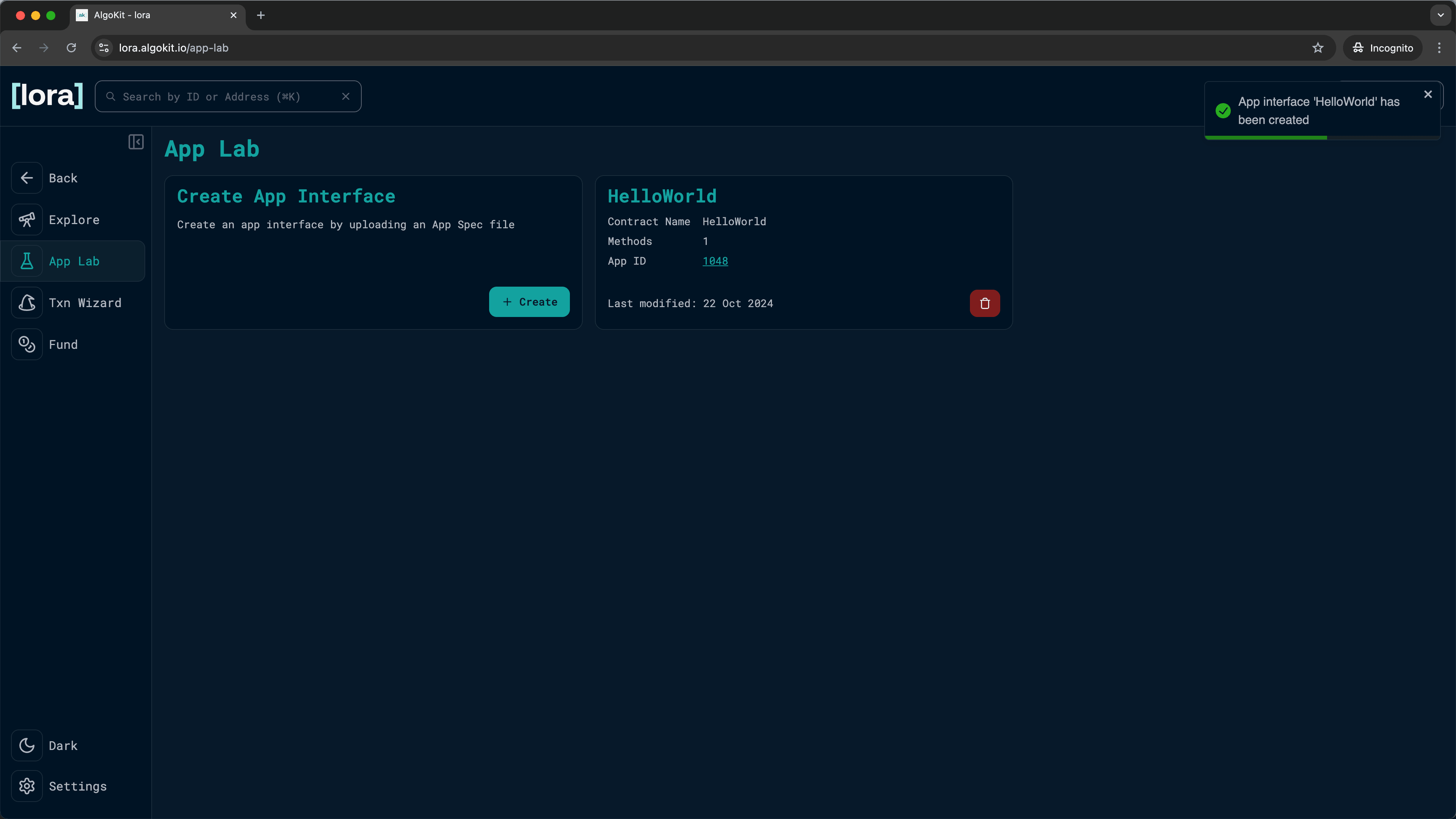
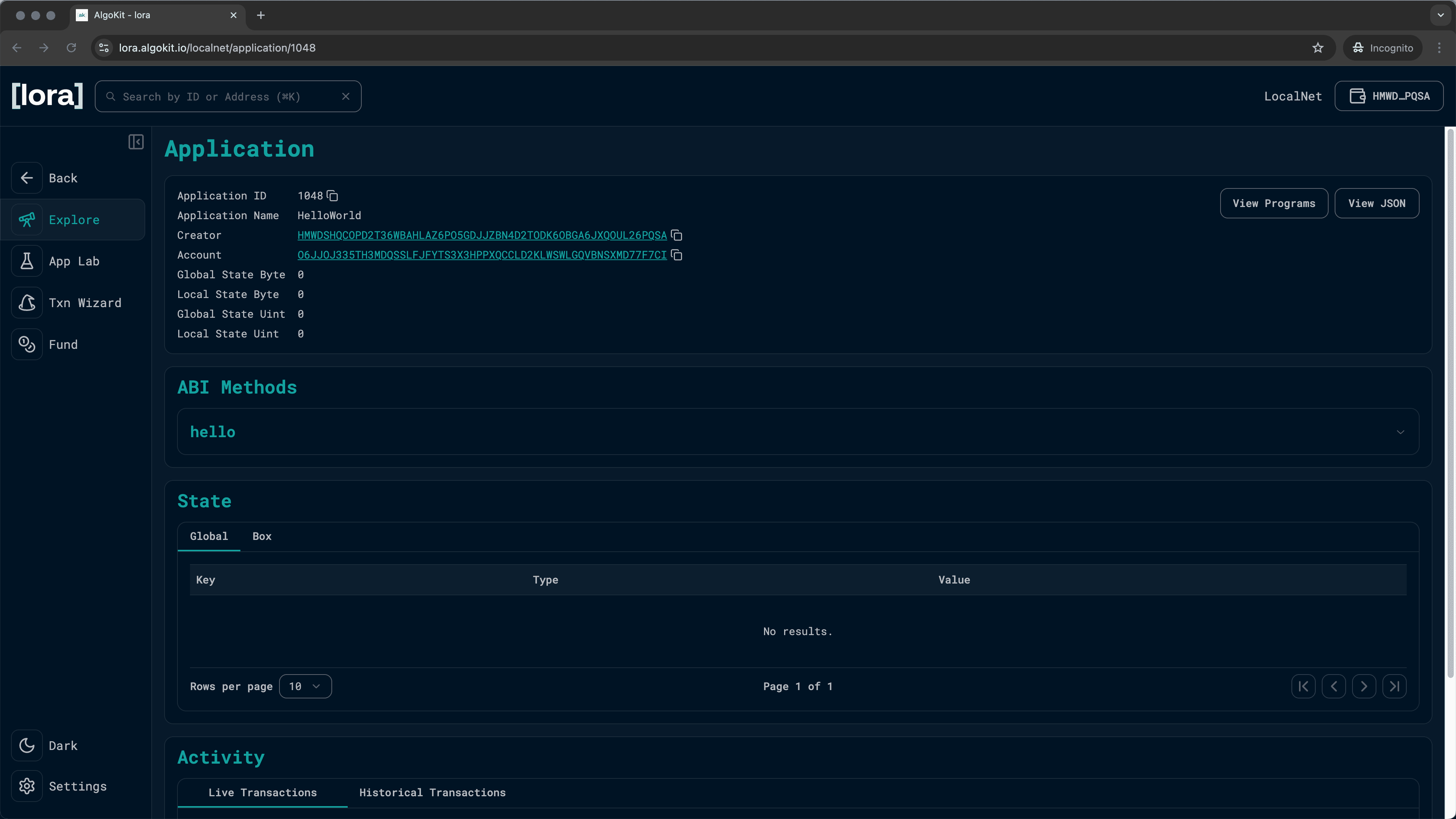
Now click on the App ID inside the HelloWorld card to navigate to the Application page:
Call Smart Contract Method
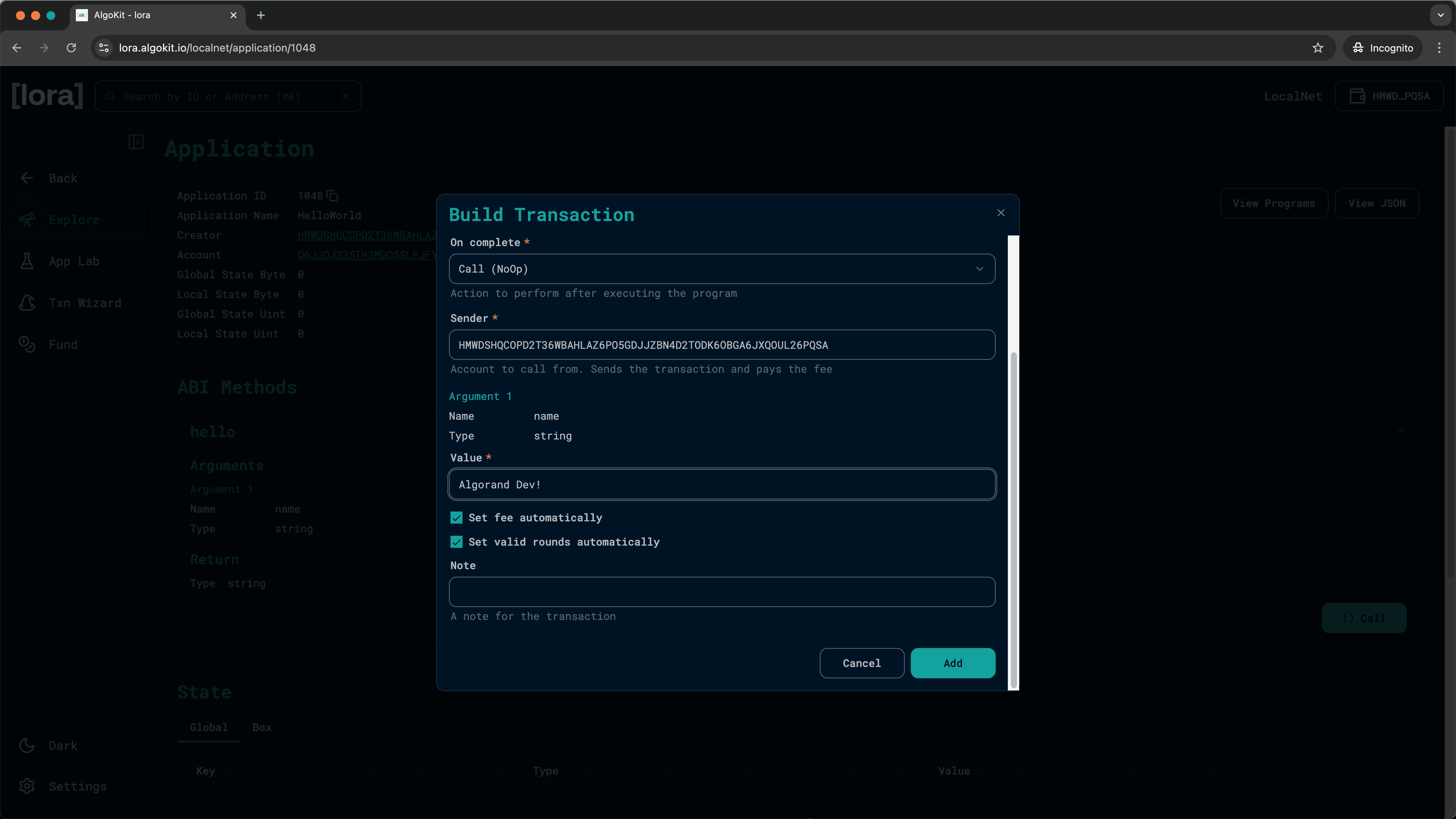
In the ABI Methods section, you should see the "hello" method. Click on the dropdown and the "Call" button. You'll be prompted with a popup allowing you to enter the parameter for the hello method:
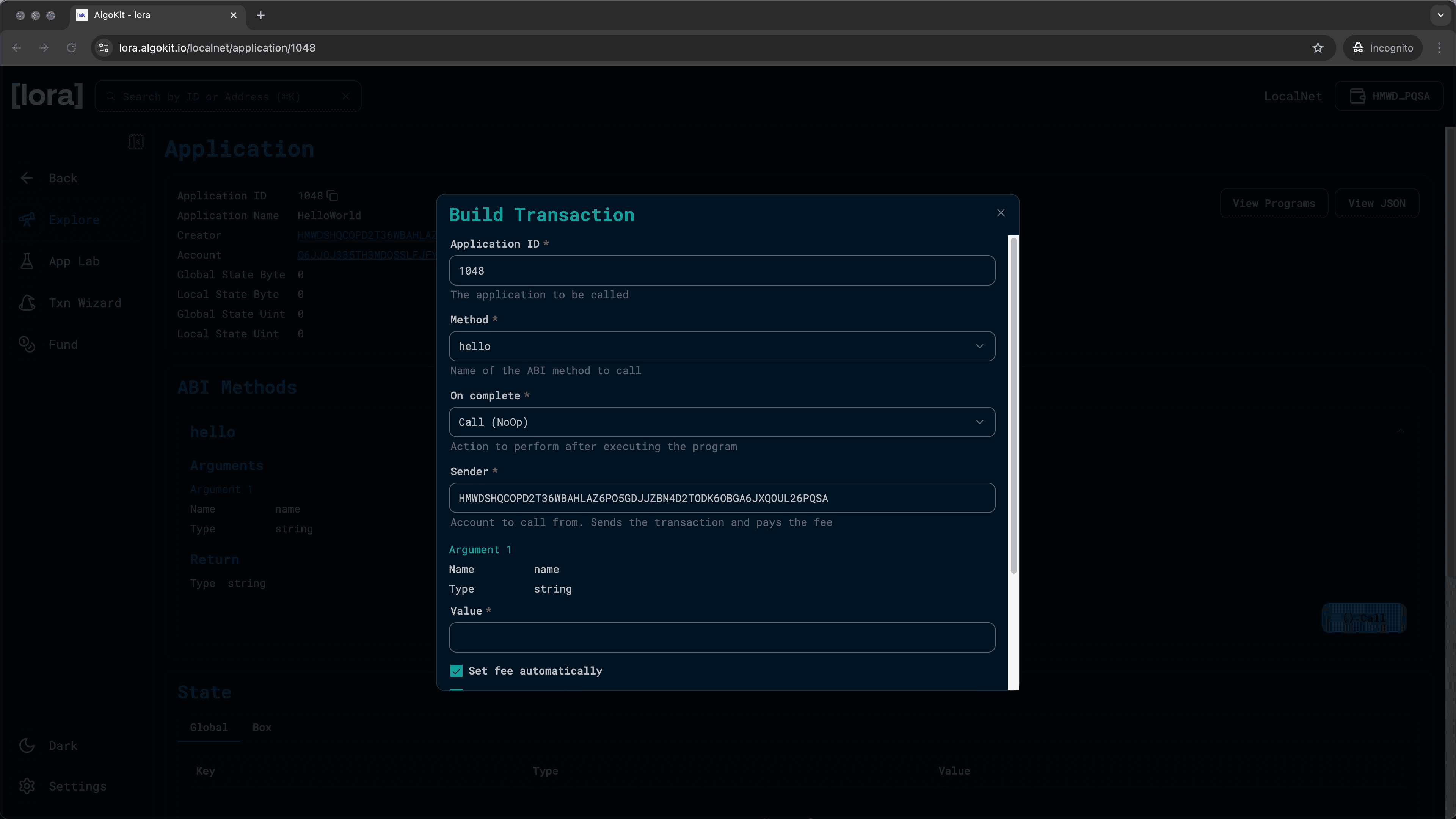
Enter a string in the value input field and click "Add":
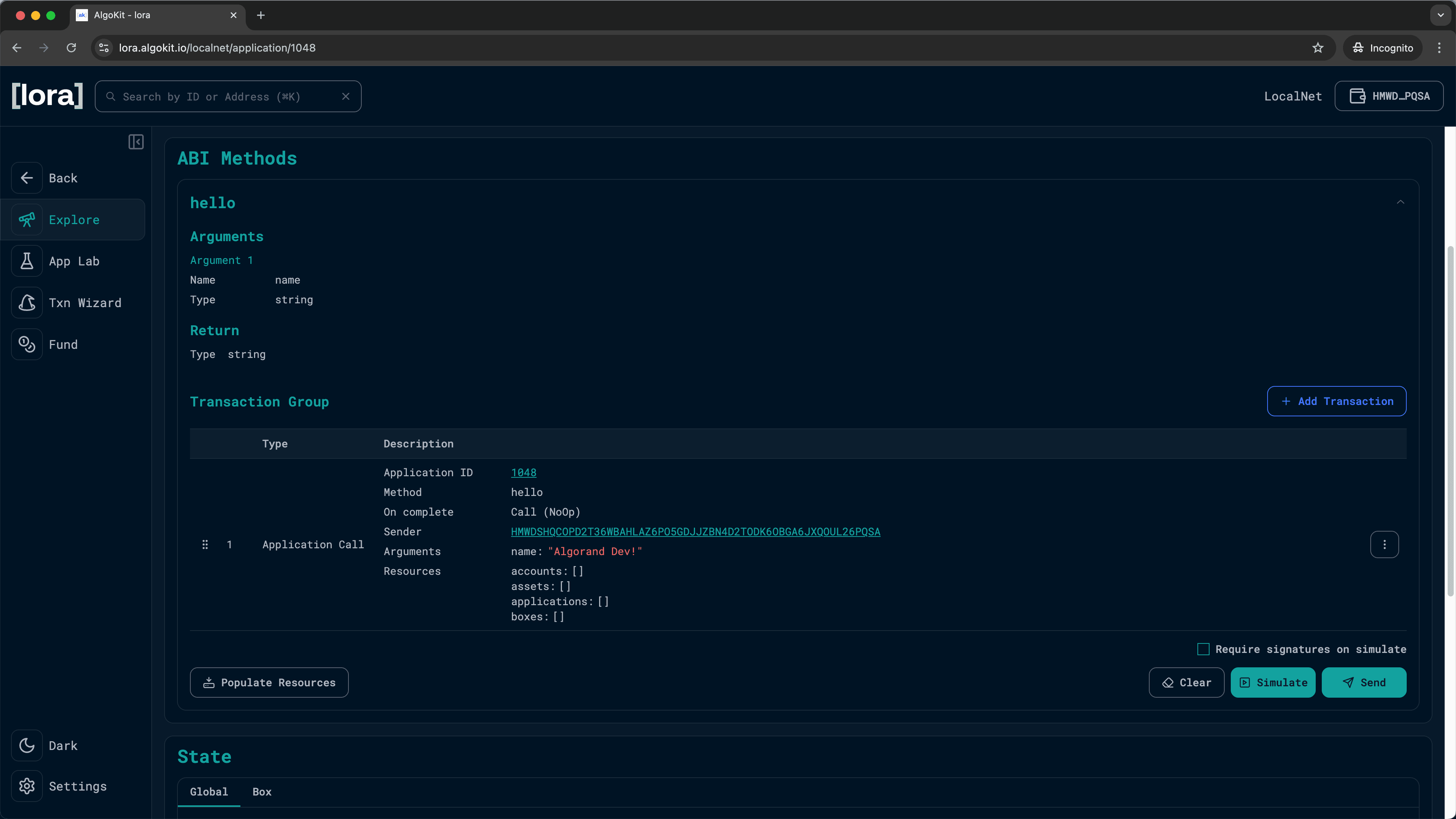
You should now see the transaction you just built on the Application page. Click "Send" and sign the transaction with your KMD wallet to execute the transaction:
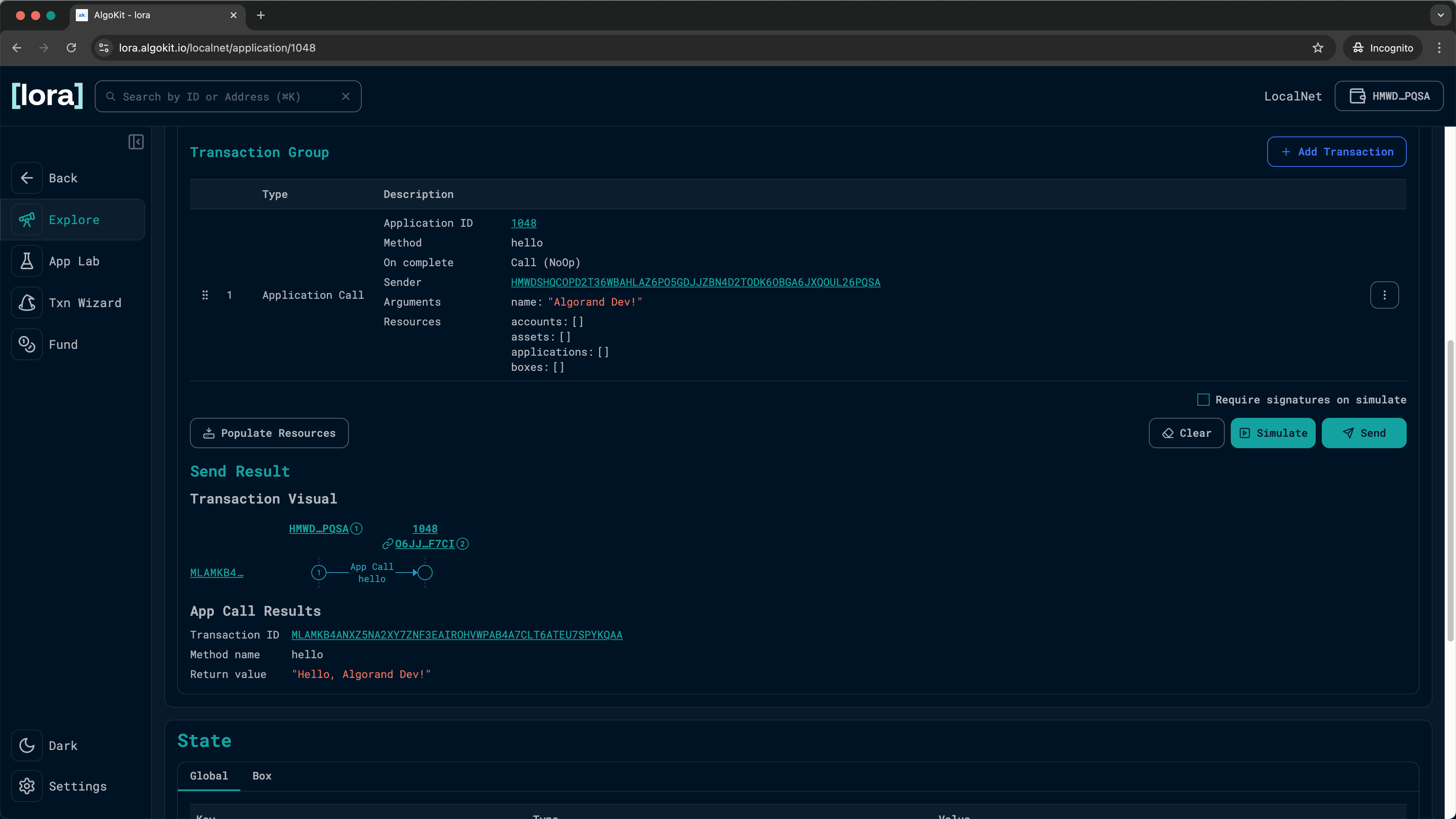
View Transaction Results
You should now see the Send Result showing you the details about the transaction you just executed!
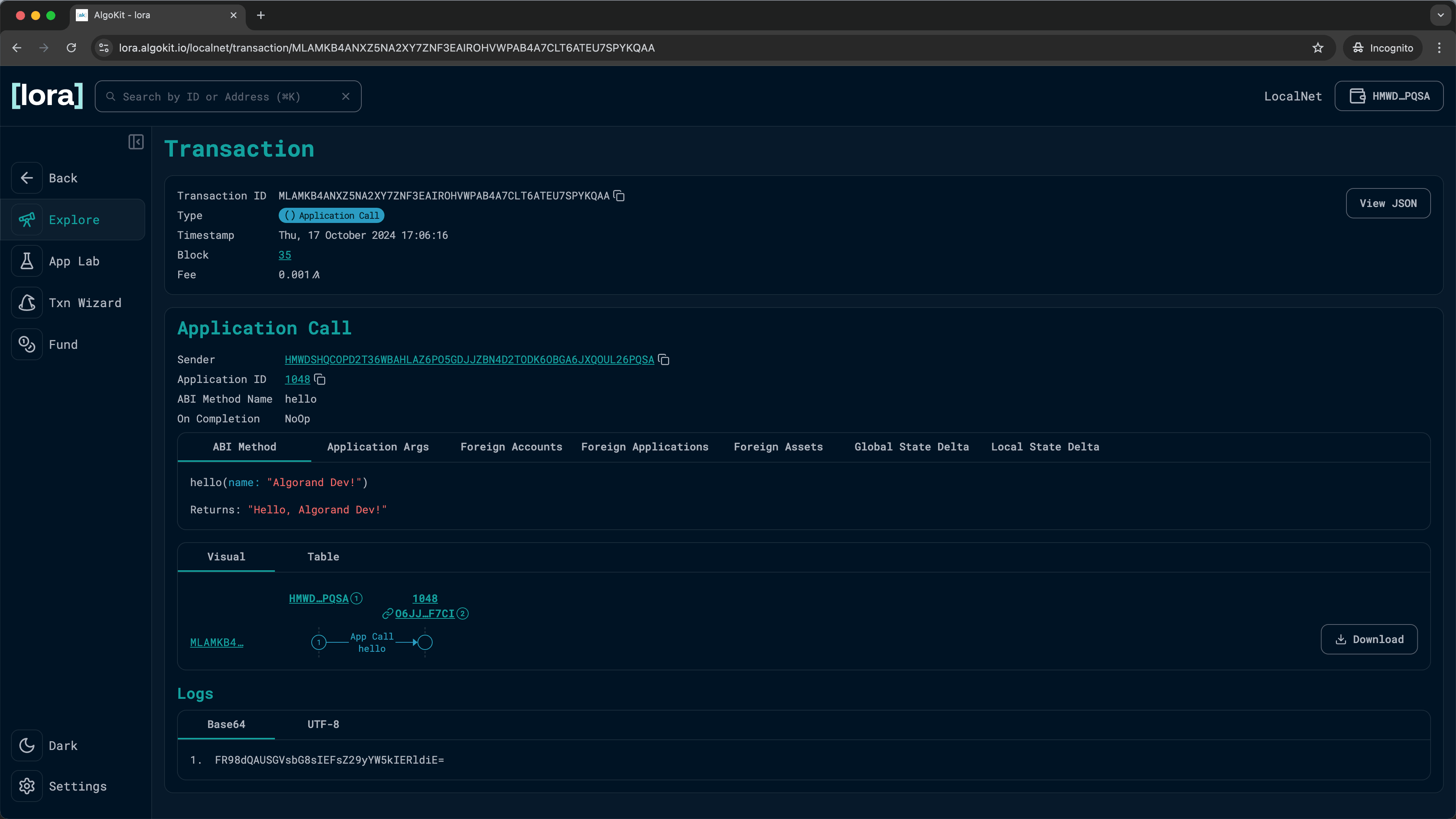
You can also click on the Transaction ID to go to the Transaction page and see the full details of the transaction:
🎉 Success!
You have now successfully deployed and executed a smart contract method call using Lora!